
The private source
Full document pages, internal crops and source links stay out of the public passport. The document remains in the breeder’s private library unless you deliberately share a copy.
Raise and record a litter · Records
Keep the source. Check the puppy. Save only what the document actually says.
A clinic visit can leave you with several pages and a few important details to find again. Here’s how to turn those pages into a clear record without losing their context.
Start with the puppy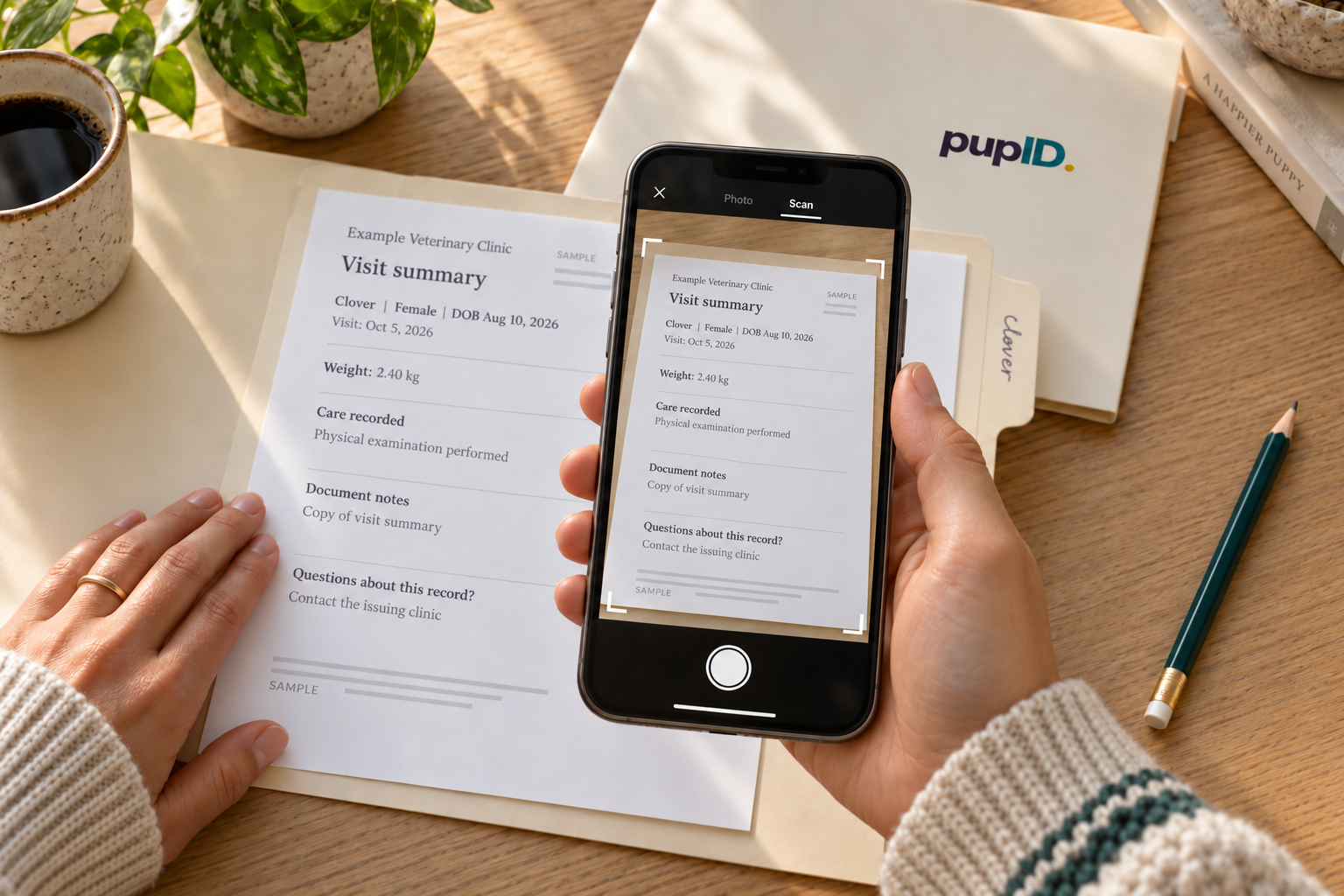
Before you begin
A useful result has three parts: the correct puppy, a legible copy of the complete document, and checked entries for care that was actually recorded. Keep the clinic’s future advice alongside the source without turning it into a completed event.
pupID keeps private documents with the right puppy or litter and saves the care records you enter. Your check connects the source to the puppy. It does not certify the clinic’s entry or establish what care the puppy needs next.
Read the identifying information before you read the care entries. Compare the puppy’s name or clinic patient ID, litter, birth date, sex, markings and microchip number where present. A familiar name alone may not be enough: two puppies can have the same name, and a family may change a name later.
Check every digit of a microchip number against your existing record. A collar color can help you orient yourself, but it can change. If the identifiers disagree, stop the match and ask the clinic rather than choosing the nearest-looking puppy.
A litter invoice may cover several puppies. It does not establish that every listed service belongs to each one. Use the clinic’s individual entries to identify who received what.
Keep the paper original or the clinic’s original digital file in your own secure files. Photograph every relevant page, including the page with the puppy’s identity and any continuation pages. Lay paper flat, use even light, and check the edges, small print and handwriting at full size before continuing.
Keep pages in reading order. A close-up helps with a faint line, but it should supplement the complete page. Preserve the date heading and the row above and below it so a detail cannot drift into the wrong entry.
Photograph it in pupID
The camera has a Photo / Scan switch and opens in Photo. In Photo, choose Save to → Documents and photograph each page. In Scan, choose Save pages for a clinic document or vaccine label. In the iOS app, the + control’s Scan choice opens the camera in Scan.
On a computer, open Documents & media and choose Add files. Upload one PDF by itself or an ordered set of photographs, or choose Capture or upload from phone.
Saving keeps the source
pupID keeps the pages you save as a private document with the puppy or litter you choose. Add any care entries yourself in the next step.
Finish an explicit save; an unfinished capture is not a lasting library filing.
Add documents in pupID ↗Requires sign-in. Choose your real document and puppy in the app; this guide sends no sample data.pupID preserves uploaded source PDFs intact and keeps legible archival images. An archival photo may be optimized; retain your original file when exact original bytes or metadata matter.
Add each recorded item with Record care, working from the page itself. Handwriting is easy to misread, rows are easy to skip, and a date can land against the wrong event, so check each entry even when it looks tidy. Start with the puppy, then the date and type of care, followed by the exact product, lot number (the manufacturer’s batch identifier), person who gave it, and any recorded weight and unit.
Not every document supplies every field. Leave a missing detail blank. Check what a date describes: a visit, a treatment, a product’s expiration, or a future recommendation. Do not use a file’s upload date as the date care happened.
A worked example · All data fictional
This simplified excerpt and comparison teach how to check an entry. They are not a clinic document, app screenshot or care recommendation. Switching the example changes only this guide; nothing is saved.
Example Clinic · Page 1 of 1
Prepared for this guide only
Illustrative errors · Do not save these
These are teaching examples of mistakes to catch before you save.
Checked result · Fictional example
Review note: “Lot unreadable in source; clarification requested.” This is a breeder note, not a clinic amendment. Attach the saved page to both entries to keep them connected to the source.
Keep the original page or the saved document in view while you enter each detail. Correct a readable mistake, leave out an unsupported entry, or leave an optional unknown blank. If required details are unresolved, keep the document saved and add the record after clarification.
Saving is your deliberate confirmation of your entry. It is not a veterinarian’s approval. Check existing history before adding another entry from a second copy of the same visit.
Keep the meaning narrow
It does not, by itself, establish that a puppy is protected, ready for a particular exposure, or finished with a vaccination course. AAHA explains that vaccine response can vary and protection is not complete in every animal. Ask the puppy’s veterinarian what the documented history means for that puppy. [1]
Copy an explicit future instruction accurately, if present, but keep it separate from completed care. Do not calculate a new due date from a product label, a littermate’s record or this guide.
Contact the clinic when identity, a date, an abbreviation, a product, or whether care was given is unclear. Point to the exact page and line. Ask for a legible copy or clarification instead of guessing.
Keep any clinic reply with your files and note who clarified the detail and when. If the clinic issues a corrected document, retain the earlier version too and identify the correction. Do not alter the original to make it agree with your record.
RCVS guidance for UK veterinary professionals supports factual records, copies for clients and corrections that leave the original entry visible. Those are UK professional requirements; access and retention rules elsewhere vary. This guide’s practical filing method is not a universal legal retention rule. [2]
Open Library → Files (Documents & media), then the saved document. Its detail page shows Saved pages. Use Open saved view and, where available, Open original to inspect the source. You can also see which puppies or litter it is filed with.
Removing a document and removing a saved record are separate actions. Do not use deletion to fix a mistaken entry; correct the affected record and keep the evidence you still need.
Open your files in pupID ↗Before you put the paperwork away
Check the puppy, the date, the value and its unit. Leave unknowns visible. Keep future advice separate. Then decide which reviewed information and documents this family actually needs.
Evidence & editorial review
2022 AAHA Canine Vaccination Guidelines ↗
Published August 17, 2022; reviewed for this guide October 10, 2026. Supports the narrow statement that vaccination does not guarantee protection in every dog. Professional guidance concerning canine vaccination, principally the US context; no schedule or individual care decision is taken from it here.
Supporting guidance, chapter 13 ↗
Updated April 24, 2026; reviewed October 10, 2026. Sections 13.2–13.4, 13.6 and 13.9 address record contents, factual accuracy, copies and traceable corrections. Applies to UK veterinary professionals, not a worldwide rule for breeders.
Finished reading?
Keep track of the guides you’ve explored.